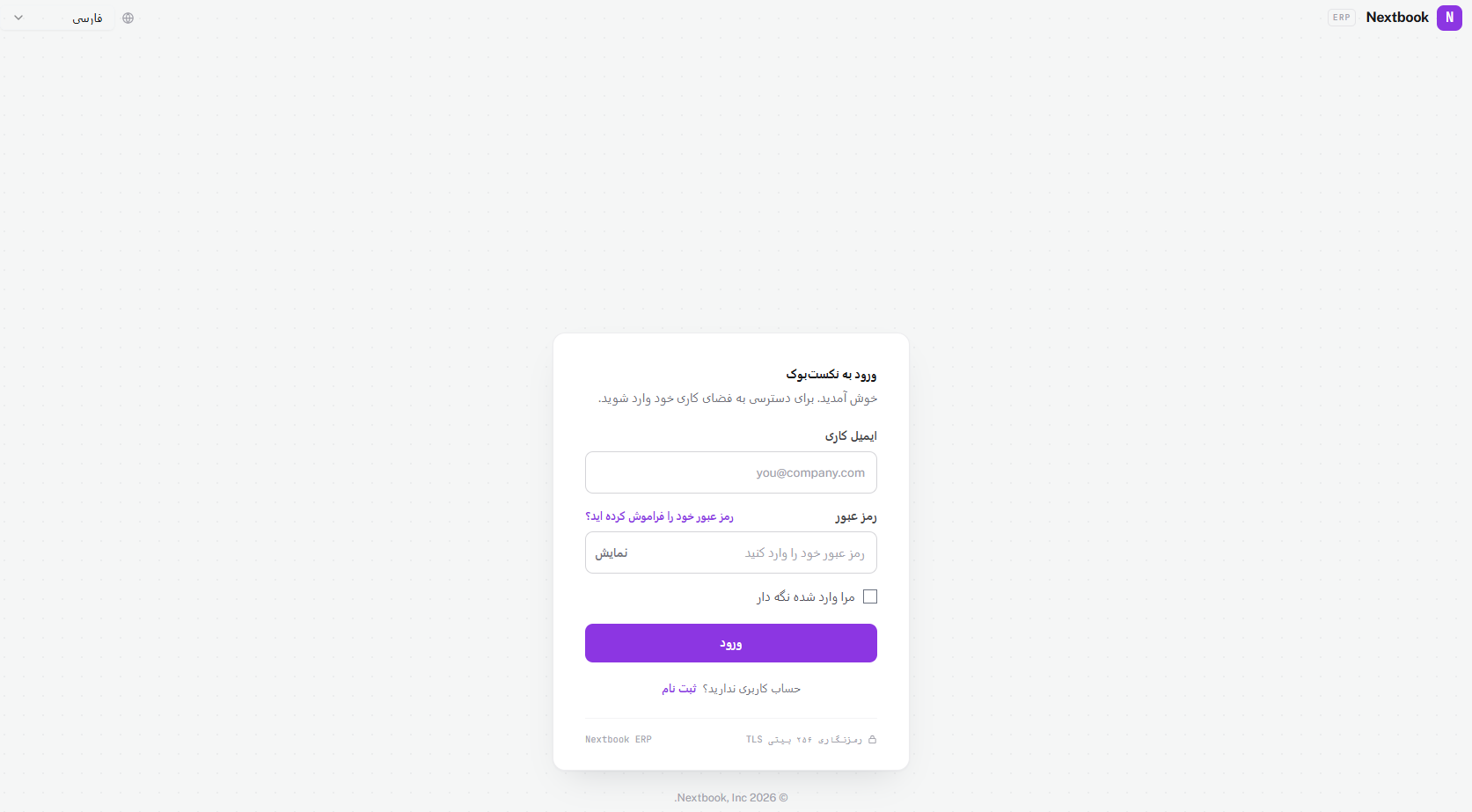
- Open the system and sign in with your email and password. If two-factor login is enabled, enter that code too.
- Use the language switcher in the header to choose English, Dari, or Pashto. Dates follow the company calendar (Gregorian or Jalali).
- If you belong to more than one branch, pick your working branch from the header. All lists and new documents stay inside that branch.

Home and Dashboard
Home is the landing page after login and includes shortcuts and tools such as currency exchange and unit conversion. The Dashboard shows totals for sales, purchases, cash, net profit, and top-selling items. What you see depends on your permissions — if a section is missing, your role does not have that access.
Your profile menu
| Menu | What it does |
|---|---|
| Account | Name, photo, password, two-factor login, and open sessions. |
| Notifications | In-app alerts for work that needs your attention (contract end, document expiry, pending approvals). |
| User Manual | This guide. It opens inside the application — it is not a separate PDF. |
| What’s New | A list of recent product changes. |
| Logout | Ends your session on this device only. |
Quick search Use the header search box to jump straight to a customer, supplier, item, or document without opening the sidebar.